


















When Apple launched the first iPad in 2010, no one really knew what to expect. It was a thin slab of glass and metal that sat between a phone and a laptop, which was great for watching movies, checking emails, and reading, but wasn’t exactly built for serious work.
Over time, that changed. Apple kept improving the iPad until it became a real tool for writing, designing, and even video editing.
If you’re wondering how to use your iPad as a laptop replacement, here are 10 tips to help you make the switch.
1. Get a Magic Keyboard or Smart Keyboard Folio
Typing on the screen works fine for short replies, but if you’re writing emails or documents, you’ll want a real keyboard. Apple’s Magic Keyboard and Smart Keyboard Folio are both great choices.
The Magic Keyboard feels like a laptop. It has a built-in trackpad, solid keys, and backlighting for typing at night. The Smart Keyboard Folio is lighter and easier to carry around. Both connect magnetically and don’t need charging or Bluetooth pairing. Once you start using one, you won’t want to go back to typing on glass.

2. Use a Bluetooth Mouse or Trackpad
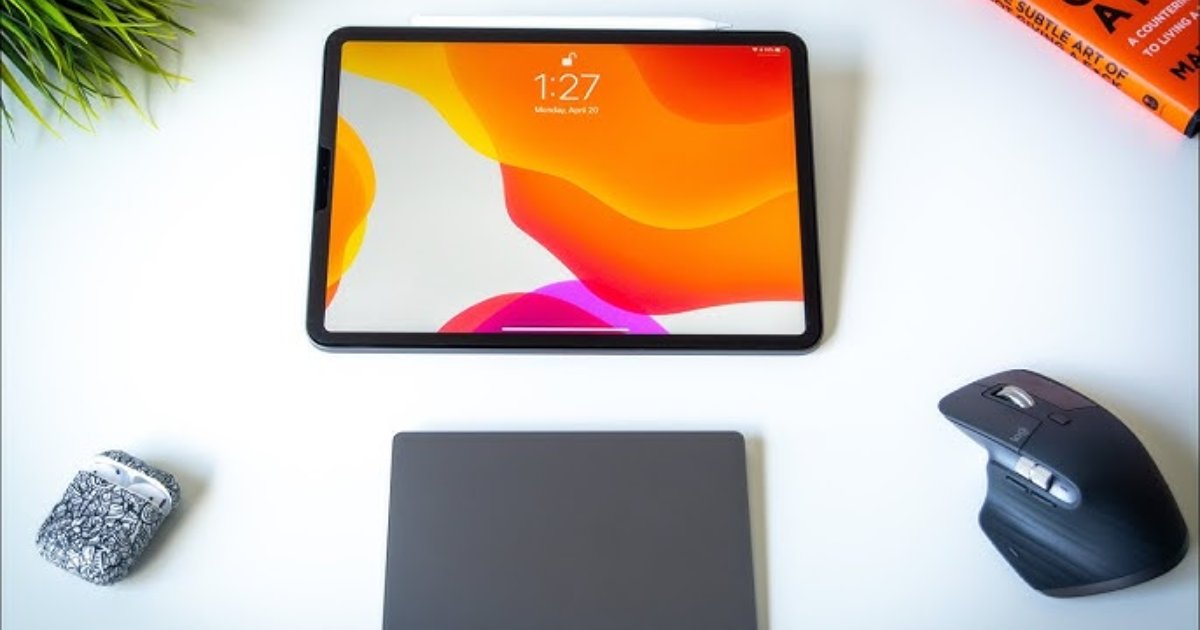
A mouse or trackpad makes everything smoother. It gives you precision when editing photos, writing, or working on spreadsheets.
Connecting one is easy. Turn on Bluetooth, pair it, and your iPad recognises it right away. You can scroll, drag, highlight, and switch between apps just like on a MacBook. Apple’s Magic Mouse and Trackpad work best, but third-party options do the job too.
3. Learn iPad Multitasking
The iPad can handle real multitasking now. With iPadOS, you can open apps in separate windows, resize them, and move them around the screen. You can even use Split View to run two apps side by side.
If your iPad supports Stage Manager, you can go a step further and layer multiple apps like on a computer. It takes a bit of practice, but once you get used to it, switching between apps feels natural.

4. Use iCloud Drive and External Storage
You don’t have to worry about losing files on the iPad. iCloud Drive keeps everything synced and easy to access from any device.
If you work with large files, plug in an external SSD or flash drive through the USB-C port. You can drag and drop files in the Files app just like you would on a laptop. It’s fast, simple, and makes your iPad feel like a proper computer.

5. Install Real Work Apps
The iPad now supports full versions of professional apps like Microsoft 365, Photoshop, DaVinci Resolve, and Final Cut Pro. These apps run just as smoothly as they do on a laptop and use touch and the Apple Pencil really well.
Since the iPad runs on the same chips as MacBooks, it’s powerful enough for almost anything from editing videos to creating presentations. You can even play console-level games like Resident Evil 2 and Assassin’s Creed Mirage.

6. Carry a Power Bank
Apple says the iPad lasts about ten hours, but if you’re editing videos or multitasking, it drains faster. A good power bank helps you stay charged all day.
The Anker Zolo Power Bank is a solid pick. It’s light, powerful, and can charge your iPad and phone at the same time. You’ll thank yourself for having it when you’re working away from an outlet.

7. Try the Apple Pencil
The Apple Pencil isn’t just for artists. It’s great for signing documents, marking PDFs, sketching ideas, or jotting down notes.
Apps like GoodNotes and Notability turn your iPad into a digital notebook. It’s quick, accurate, and feels natural to use. Once you get used to it, it’s hard to imagine your iPad without it.
8. Use Universal Control and Sidecar
If you also have a Mac, Apple’s ecosystem really shines. With Universal Control, you can move your cursor from your Mac straight onto your iPad, copy and paste text, and drag files across screens.
Sidecar turns your iPad into a second display. You can use it to extend your workspace or mirror your Mac screen. It’s perfect for multitasking or presentations.

9. Adjust Battery and Performance Settings
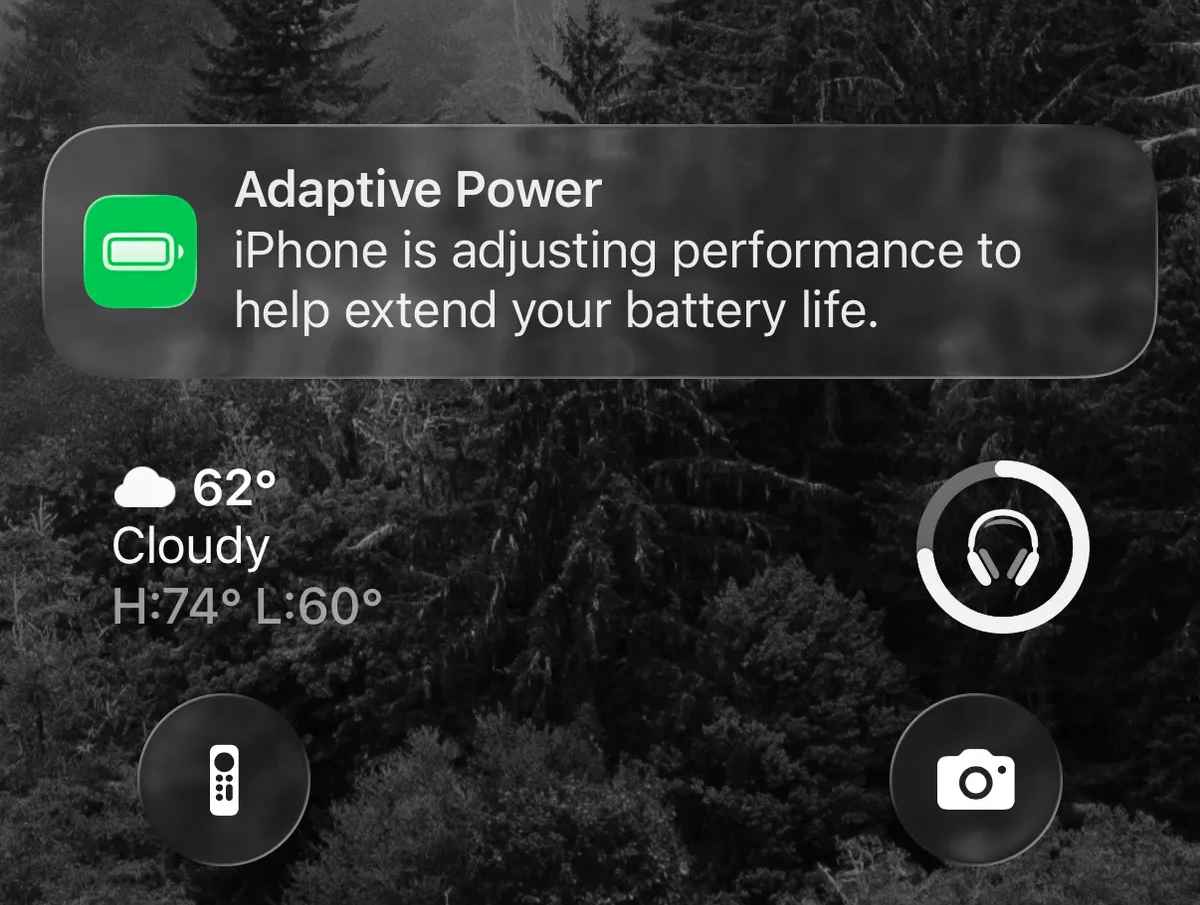
A few simple tweaks make your iPad run better and last longer. Update to the latest version of iPadOS, lower screen brightness when possible, and turn on Low Power Mode when you’re not near a charger.
Also, close background apps and turn off Wi Fi or Bluetooth when you don’t need them. These small changes keep your battery strong through long work sessions.
10. Don’t Forget a Stand or Dock
A good stand or dock makes a huge difference in ergonomics. It elevates the screen to eye level, reducing neck strain, and often adds USB ports for peripherals. Some docks even support HDMI, SD cards, and Ethernet, turning your iPad into a true workstation.

Using Your Ipad As a Laptop Replacement
Turning an iPad into a full workstation costs some money once you add a keyboard, Pencil, and maybe a dock or monitor. But what you get is worth it for both productivity and creativity.
The latest iPad Pro models with the M5 chip are even faster and smarter, with better graphics and Wi Fi 7. The iPad isn’t just a tablet anymore. It’s a real alternative to a laptop, ready for whatever kind of day you have.
Stay tuned to Brandsynario for latest news and updates



 Join a Channel
 Brandsynario
 Veryfilmi