
















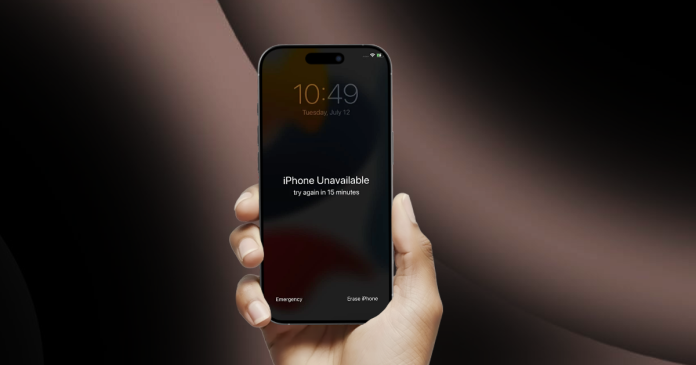

For many iPhone users in Pakistan, forgetting the passcode or seeing the iPhone Unavailable screen is one of the most stressful situations.
The device locks itself, and suddenly you lose access to your photos, WhatsApp chats, banking apps, university notes, and everything else you depend on daily.
Apple has introduced a much simpler reset method with newer iOS versions, and it works even if you no longer remember your passcode. Here is the complete guide.
What Happens When Your iPhone Locks Itself?
If you enter the wrong passcode too many times, your iPhone becomes unavailable. This is Apple’s security feature to protect your data from unauthorised access.
Earlier, the only way to fix this was to connect the phone to iTunes or Finder on a computer. Now, newer iOS versions offer a built-in reset option that appears directly on the lock screen.
How Does the New On-Device Reset Method Work?
This feature works on iOS 17 or newer and makes the recovery process extremely simple. Here’s what to do:
- Find the option that says “Forgot Passcode” on the locked iPhone screen
- Tap to go to “Start iPhone Reset.”
- Enter your Apple ID and password for verification
- After confirmation, the iPhone will erase itself and restart as a brand-new device
What to Do for Older iPhones?
Not every device shows the on-screen reset option. Older models or devices that become unresponsive must be reset using Recovery Mode and a computer.
View this post on Instagram
The method depends on your iPhone model. Here’s the process for:
iPhone 8:
- Press and release Volume Up
- Press and release Volume Down
- Press and hold the Side button until the Recovery Mode screen appears
iPhone 7 and 7 Plus:
Press and hold the Side button and the Volume Down button together until Recovery Mode appears
iPhone 6s, iPhone SE (1st Gen) and Older:
Press and hold the Home button and the Top or Side button together until the Recovery screen shows up
Once your iPhone enters Recovery Mode, connect it to a computer. Finder on macOS or the Apple Devices app on Windows will ask whether you want to restore or update.
Apple has made forgetting your iPhone passcode far less painful. With the new built-in reset option and the traditional Recovery Mode, you now have two reliable ways to unlock your device and start fresh.
Stay tuned to Brandsynario for latest news and updates